How to Convert PDF to Image Free Online (PNG & JPG) — No Software Needed
Need to turn a PDF into an image? Learn how to convert PDF pages to high-quality PNG or JPEG files instantly in your browser — no signup, no software, completely free.
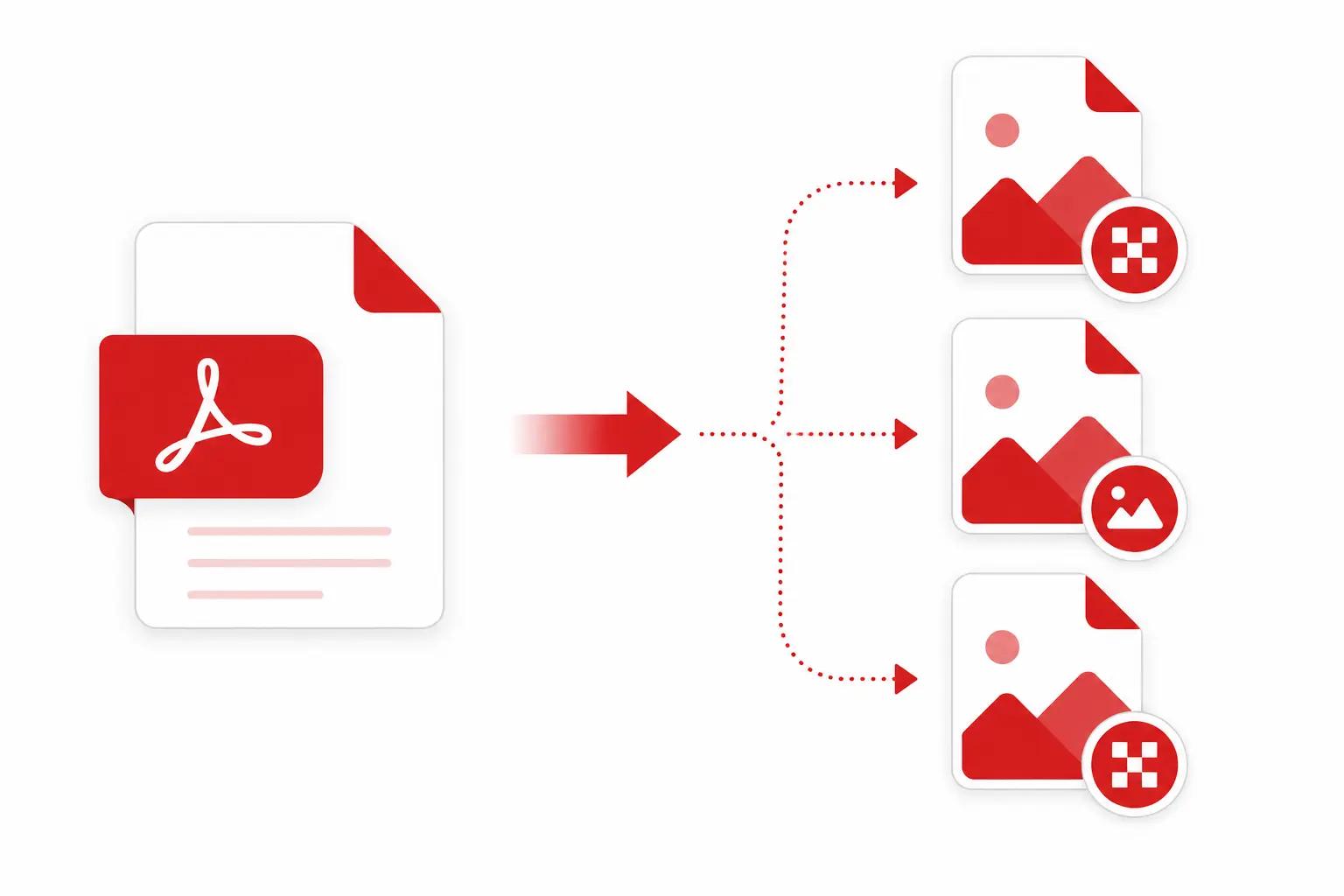
Have you ever tried to share a PDF on Instagram, use a PDF page as a website banner, or just needed a quick image from a document?
PDFs are great for documents but terrible for sharing as visuals. That's where a PDF to Image converter comes in.
In this guide, we'll show you exactly how to do it — free, instantly, and without uploading your file to any server.
Why Convert PDF to Image?
There are more reasons than you'd think:
- Social media — Instagram, Twitter, and Pinterest don't support PDF uploads. Converting to PNG lets you share any document page instantly.
- Presentations — Drop a PDF page into PowerPoint or Google Slides as a crisp image.
- Web design — Embedding an image loads faster and more reliably than a PDF viewer on mobile.
- Thumbnails — Create preview images of your PDF documents for your website.
- Email — Attach an image instead of a PDF when you only need to share one page.
PNG vs JPEG — Which Should You Choose?
PNG
JPEG
Best for
Text, logos, diagrams
Photos, illustrations
File size
Larger
Smaller
Quality
Lossless (no quality loss)
Slight compression
Transparency
Supported
Not supported
Rule of thumb: If your PDF has text or sharp graphics, choose PNG. If it's mostly photos, choose JPEG.
What DPI Should You Use?
DPI (dots per inch) controls the resolution of the output image:
- 72 DPI — Fast, smaller file. Good for web/screen use only.
- 150 DPI — Balanced quality. Good for most uses including standard printing.
- 300 DPI — Maximum quality. Use this for professional printing or when you need to zoom in.
How to Convert PDF to Image (Step by Step)
Step 1 — Go to FreeToolsHub PDF to Image Converter
Step 2 — Choose your Resolution (72, 150, or 300 DPI) and Format (PNG or JPEG)
Step 3 — Drag and drop your PDF or click "Choose PDF" to upload
Step 4 — Wait a few seconds while it converts (entirely in your browser)
Step 5 — Click any page to download it, or hit "Download All (ZIP)" to get everything at once
That's it. No account needed. No watermarks. No file size tricks.
Is It Safe? Your PDF Never Leaves Your Device
Unlike most online converters that upload your file to a server, FreeToolsHub processes everything locally in your browser using PDF.js. This means:
- Your confidential documents stay private
- No server ever sees your file
- Works even on sensitive documents like contracts or medical records
Frequently Asked Questions
Can I convert a multi-page PDF? Yes — up to 20 pages at once. All pages are converted and you can download them individually or as a ZIP file.
Is there a file size limit? The tool supports PDFs up to 50MB, which covers the vast majority of documents.
Does it work on mobile? Yes, it works on any device with a modern browser — iPhone, Android, tablet, or desktop.
Is it really free? 100% free, forever. No hidden plans, no watermarks, no signup.